How to Change the Background Colour of Drafting in 3DEXPERIENCE
- Anurag Negi
- October 14, 2025
In Dassault Systèmes 3DEXPERIENCE platform, engineers often prefer to personalize their environment for better visibility and comfort — especially in the Drafting App. One common customization is changing the background colour of drafting sheets.
By default, 3DEXPERIENCE uses a standard drafting template controlled by system environment variables and XML standard files. In this guide, we’ll walk through how to change the drafting background colour by modifying the default standard files and CATENV configuration — all while keeping your company’s settings organized and reusable.
Step 1: Copy Default Drafting Standards
- Navigate to the default installation directory:
- C:\Program Files\Dassault Systèmes\B427_Cloud\win_b64\resources
(Note: The folder name (like B427_Cloud) might vary depending on your 3DEXPERIENCE version or deployment type)
- Locate the folder named standard inside the resources directory.
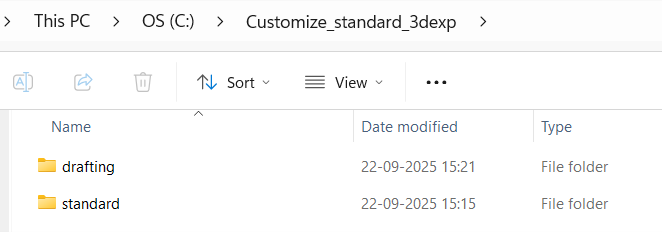
- Copy the entire “standard” folder and paste it into a new directory where you will store your custom standards.
Example: C:\Customize_standard_3dexp\standard
- You can rename the folder or path based on your company’s configuration structure.
Step 2: Locate and Edit the CATENV File
The CATENV file defines environment variables and paths for 3DEXPERIENCE. Updating this file ensures your custom standards are recognized.
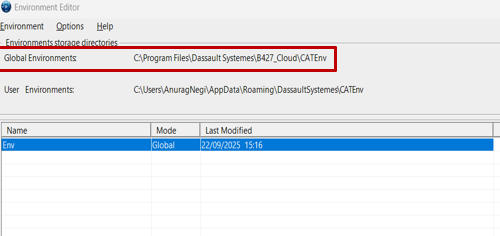
- Open Environment Editor from the Windows Search bar
- Locate the Global Environments section.
- Identify where the CATENV file is stored, typically under:
C:\Program Files\Dassault Systemes\B427_Cloud\CATEnv
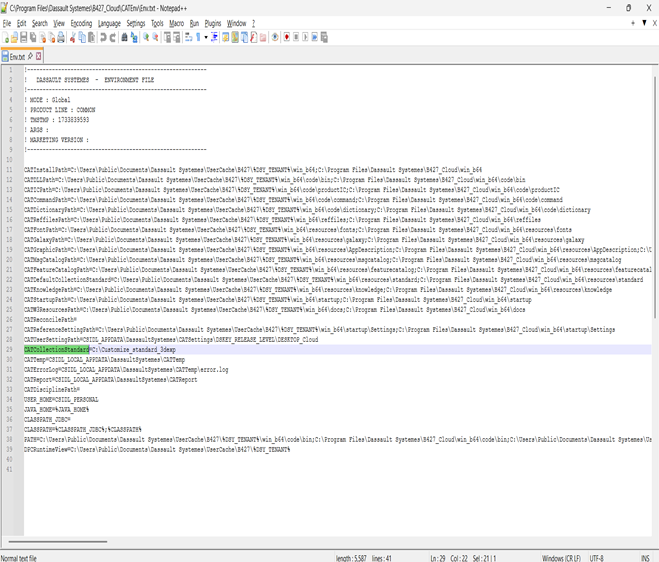
- Open the CATENV file using Notepad++ or any text editor.
- Find the line that specifies CATCollectionStandard (usually around line 29).
- Add your custom standards folder path after the “=” sign.
Example: CATCollectionStandard=C:\Customize_standard_3dexp\standard
- Save and close the file
Step 3: Open 3DEXPERIENCE and Configure Drafting Standards
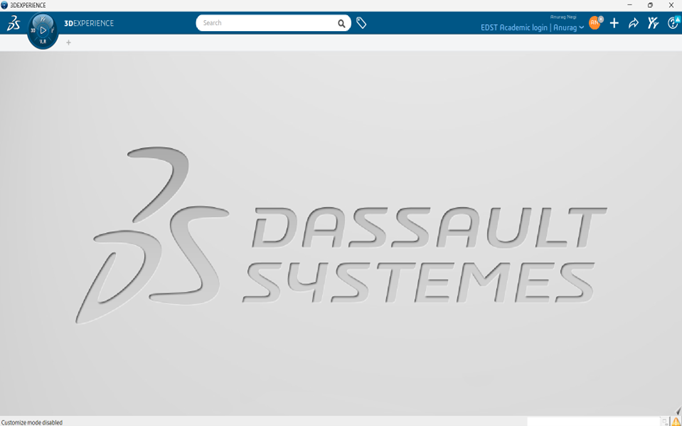
- Launch 3DEXPERIENCE and open any application.
- Close it immediately — this ensures environment paths refresh.
- It should be like below image
Step 4: Set Responsibility to “Owner”
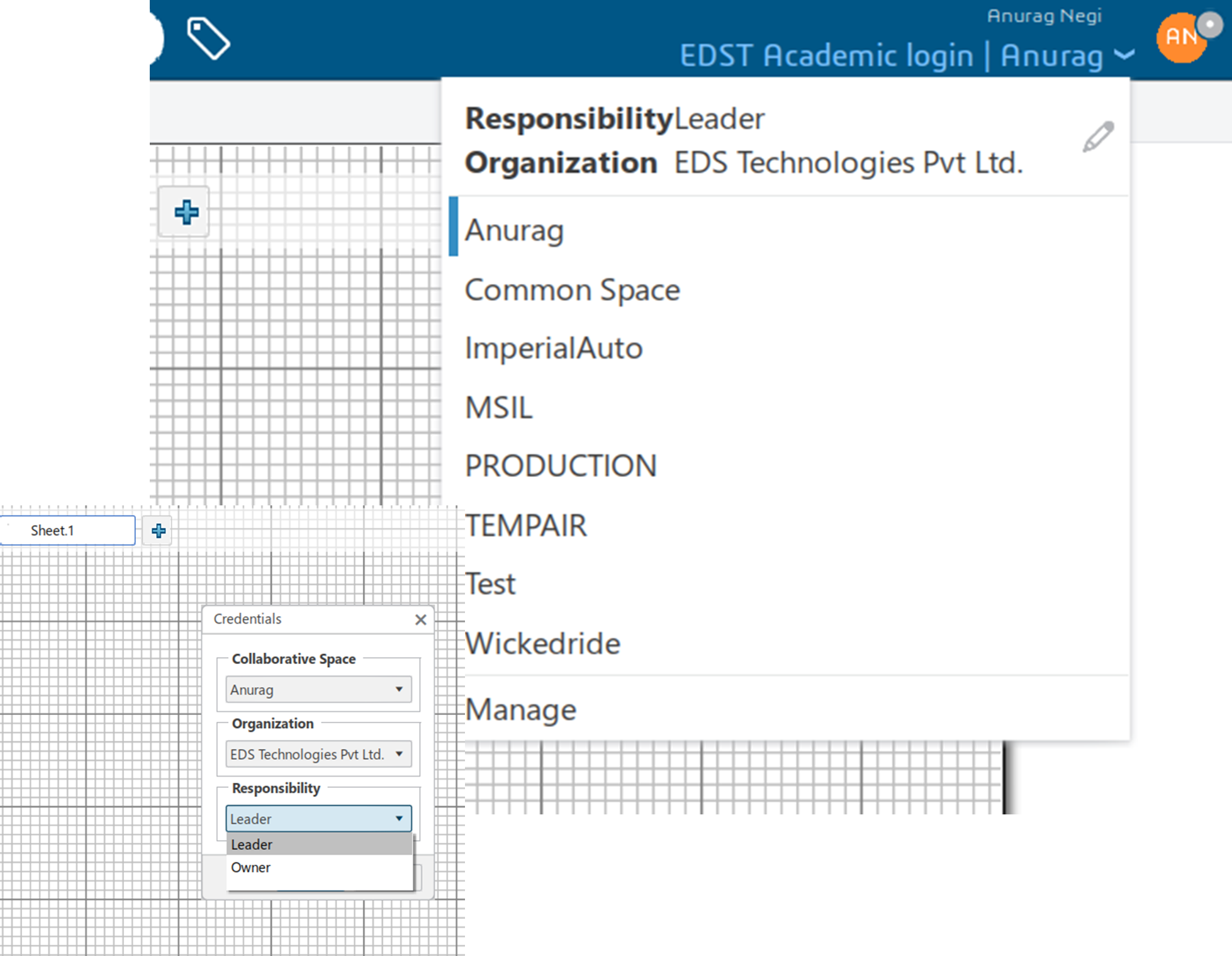
- Click the downward arrow next to your username.
- Select Edit → Responsibility tab → change to Owner
- Confirm the change.
(This step ensures you have permission to modify and save custom standards.)
Step 5: Customize and Save Drafting Standard
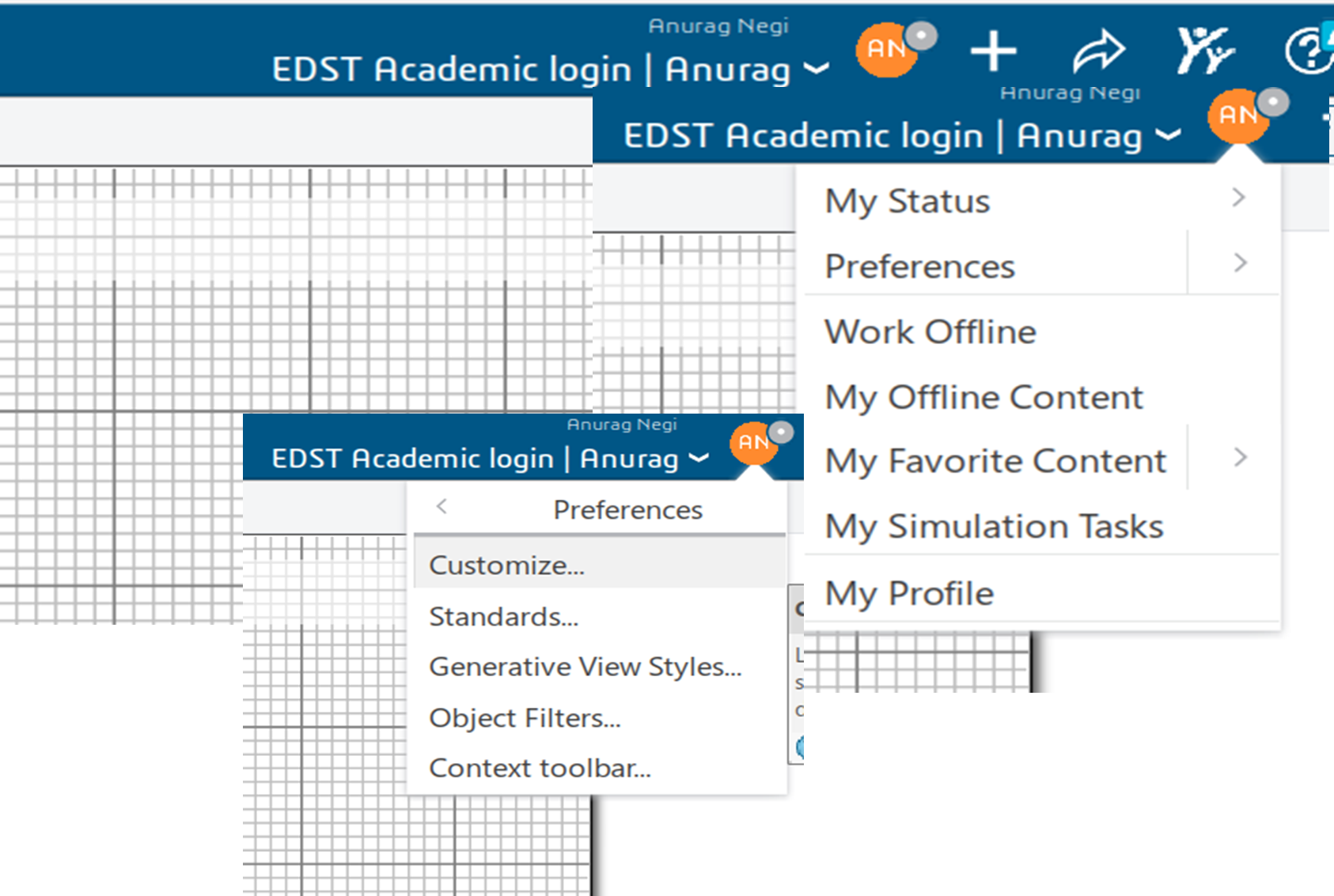
- In the App, click the “Me” symbol (beside your name).
- Go to Preferences → Standards.
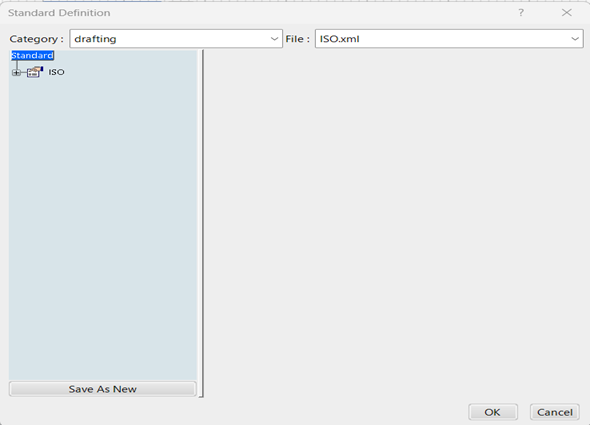
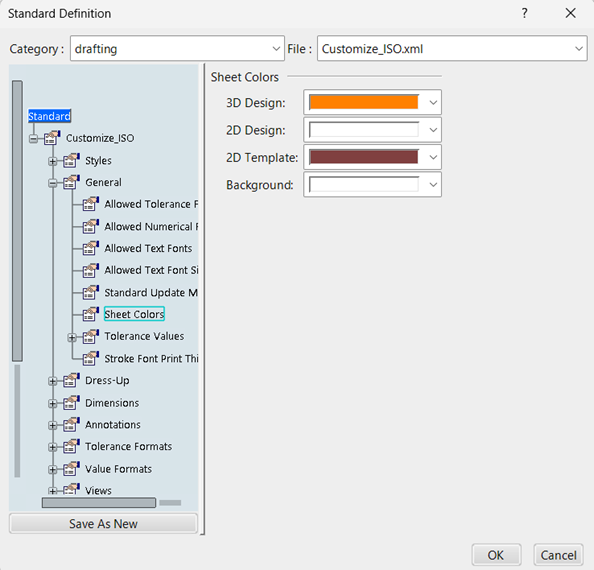
- In the dialog box:
- Set Category to “Drafting”.
- Select the desired XML file (e.g., ISO.xml or ASME.xml).
- Click Save As New and provide a new file name.
- Save the file in your custom location:
- C:\Customize_standard_3dexp\standard\drafting
Step 6: Change Background Colour
Now that your custom standard is ready:
- Navigate to:
Standard → General → Sheet → Colors → 2D Template. - Choose your preferred background color.
- Click OK to save.
- Change the Responsibility back to Leader once completed.
You can now open any drawing to verify that the background color has successfully updated according to your preference.
Summary of Key Paths
| Purpose | Path |
| Default Standards | C:\Program Files\Dassault Systemes\B427_Cloud\win_b64\resources\standard |
| Custom Standards | C:\Customize_standard_3dexp\standard |
| CATENV File | C:\Program Files\Dassault Systemes\B427_Cloud\CATEnv |
Tips & Best Practices
- Always backup the default standard before making modifications.
- Keep a naming convention for your customized standards (e.g., ISO_Custom.xml).
- Use version control if multiple engineers edit standards.
- For large organizations, centralize the custom standard path to ensure consistency.
Conclusion
Changing the drafting background color in 3DEXPERIENCE isn’t just about aesthetics — it’s about improving readability, consistency, and user comfort. By following this guide, you can easily manage and customize your drafting environment using controlled standards and CATENV configurations.

Recent Posts
-
From Prototypes to Production: How Additive Manufacturing is Shaping Atmanirbhar Bharat
The conversation around additive manufacturing (AM) in India has evolved considerably over the past decade. What was once viewed primarily as a prototyping technology is…
-
Identify Stray Light in Imaging Systems with LightTools
Stray light is undesired light radiation that interacts with the components of a system and degrades its performance by generating noise, that significantly reduces image…
-
Redefining the Riding Experience with RAMSIS
In two‑wheeler design, comfort and safety start with the rider. RAMSIS (Realistic Anthropometric Mathematical System of Interior Comfort Simulation) is an ergonomic simulation platform that…
-

Enhancing Product Understanding through 3D Technical Illustrator
The 3D Technical Illustrator role within the 3DEXPERIENCE Platform enables organizations to transform complex engineering data into clear, interactive, and visually rich technical documentation. In…
-

Transforming Physical Parts into Digital Models with CATIA 3DEXPERIENCE Reverse Engineer role
Reverse engineering has become a critical capability in modern product development, especially when working with legacy components, competitor benchmarking, or physical prototypes that lack digital…
-
Fixing Search Service Down Issue in 3DEXPERIENCE Platform
Search is one of the most critical features in the 3DEXPERIENCE platform. If the search service goes down, users cannot find objects, documents, or data—impacting…
-
Common Installation Errors and How to Fix Them in 3DEXPERIENCE
The 3DEXPERIENCE Platform is a powerful solution used by industries worldwide for product lifecycle management (PLM), simulation, and collaboration. However, installing 3DEXPERIENCE—especially on-premise—can be complex…
-

From Classroom to Industry: Empowering Future Engineers with the 3DEXPERIENCE Platform
In today’s fast-evolving engineering and design landscape, educational institutions must go beyond conventional CAD teaching methods. While standalone tools like CATIA V5, SOLIDWORKS, or traditional…
- Anurag Negi
- October 14, 2025
How to Change the Background Colour of Drafting in 3DEXPERIENCE
In Dassault Systèmes 3DEXPERIENCE platform, engineers often prefer to personalize their environment for better visibility and comfort — especially in the Drafting App. One common customization is changing the background colour of drafting sheets.
By default, 3DEXPERIENCE uses a standard drafting template controlled by system environment variables and XML standard files. In this guide, we’ll walk through how to change the drafting background colour by modifying the default standard files and CATENV configuration — all while keeping your company’s settings organized and reusable.
Step 1: Copy Default Drafting Standards
- Navigate to the default installation directory:
- C:\Program Files\Dassault Systèmes\B427_Cloud\win_b64\resources
(Note: The folder name (like B427_Cloud) might vary depending on your 3DEXPERIENCE version or deployment type)
- Locate the folder named standard inside the resources directory.
- Copy the entire “standard” folder and paste it into a new directory where you will store your custom standards.
Example: C:\Customize_standard_3dexp\standard
- You can rename the folder or path based on your company’s configuration structure.
Step 2: Locate and Edit the CATENV File
The CATENV file defines environment variables and paths for 3DEXPERIENCE. Updating this file ensures your custom standards are recognized.
- Open Environment Editor from the Windows Search bar
- Locate the Global Environments section.
- Identify where the CATENV file is stored, typically under:
C:\Program Files\Dassault Systemes\B427_Cloud\CATEnv
- Open the CATENV file using Notepad++ or any text editor.
- Find the line that specifies CATCollectionStandard (usually around line 29).
- Add your custom standards folder path after the “=” sign.
Example: CATCollectionStandard=C:\Customize_standard_3dexp\standard
- Save and close the file
Step 3: Open 3DEXPERIENCE and Configure Drafting Standards
- Launch 3DEXPERIENCE and open any application.
- Close it immediately — this ensures environment paths refresh.
- It should be like below image
Step 4: Set Responsibility to “Owner”
- Click the downward arrow next to your username.
- Select Edit → Responsibility tab → change to Owner
- Confirm the change.
(This step ensures you have permission to modify and save custom standards.)
Step 5: Customize and Save Drafting Standard
- In the App, click the “Me” symbol (beside your name).
- Go to Preferences → Standards.
- In the dialog box:
- Set Category to “Drafting”.
- Select the desired XML file (e.g., ISO.xml or ASME.xml).
- Click Save As New and provide a new file name.
- Save the file in your custom location:
- C:\Customize_standard_3dexp\standard\drafting
Step 6: Change Background Colour
Now that your custom standard is ready:
- Navigate to:
Standard → General → Sheet → Colors → 2D Template. - Choose your preferred background color.
- Click OK to save.
- Change the Responsibility back to Leader once completed.
You can now open any drawing to verify that the background color has successfully updated according to your preference.
Summary of Key Paths
| Purpose | Path |
| Default Standards | C:\Program Files\Dassault Systemes\B427_Cloud\win_b64\resources\standard |
| Custom Standards | C:\Customize_standard_3dexp\standard |
| CATENV File | C:\Program Files\Dassault Systemes\B427_Cloud\CATEnv |
Tips & Best Practices
- Always backup the default standard before making modifications.
- Keep a naming convention for your customized standards (e.g., ISO_Custom.xml).
- Use version control if multiple engineers edit standards.
- For large organizations, centralize the custom standard path to ensure consistency.
Conclusion
Changing the drafting background color in 3DEXPERIENCE isn’t just about aesthetics — it’s about improving readability, consistency, and user comfort. By following this guide, you can easily manage and customize your drafting environment using controlled standards and CATENV configurations.