Fixing Search Service Down Issue in 3DEXPERIENCE Platform
- Akshay Hedaoo
- April 30, 2026
Search is one of the most critical features in the 3DEXPERIENCE platform. If the search service goes down, users cannot find objects, documents, or data—impacting productivity immediately.
In this blog, we’ll cover how to troubleshoot and fix search service issues related to:
- 3DSearch
- Federated Search (FedSearch)
- Indexing services
Common Symptoms
You may be facing a search service issue if:
- Search returns no results
- Search is very slow
- Error like “Search Service Not Available”
- Infinite loading while searching
- FedSearch not showing external results
Understanding How Search Works
In 3DEXPERIENCE:
- 3DSearch handles indexing and search queries
- Data is stored in search indexes (similar to Elasticsearch concept)
- Platform services communicate with search engine
If any of these components fail → search stops working.
Step-by-Step Troubleshooting Guide
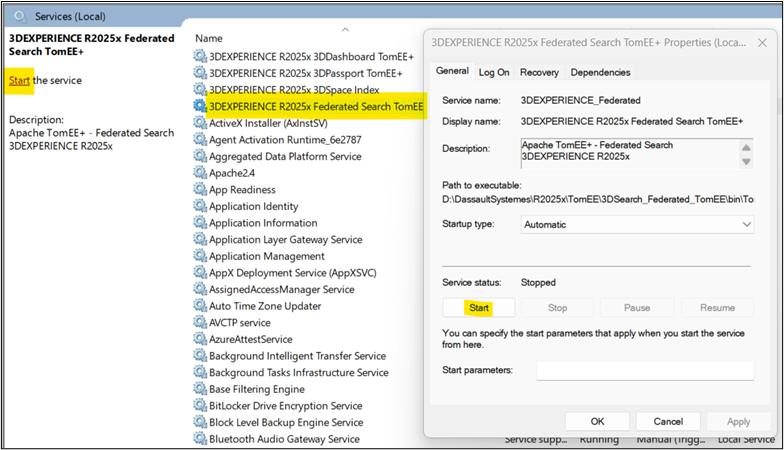
Check Search Service Status
Login to server and verify services:
- Check if 3DSearch service in services is running
- On Linux: ps -ef | grep search
- On Windows: Check in Services.msc
If service is stopped → start it.
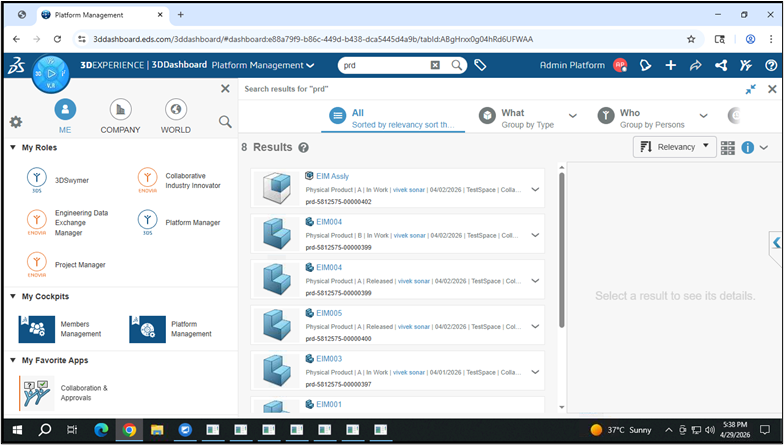
Verify Platform Services
Ensure below services are up:
- 3DSearch
- 3DSpace
- 3DPassport
If any service is down → restart all services in proper sequence.
Check Logs (Most Important )
Go to log directory: <Install_Dir>/logs/
Check:
- Search logs
- TomEE logs
- Platform logs
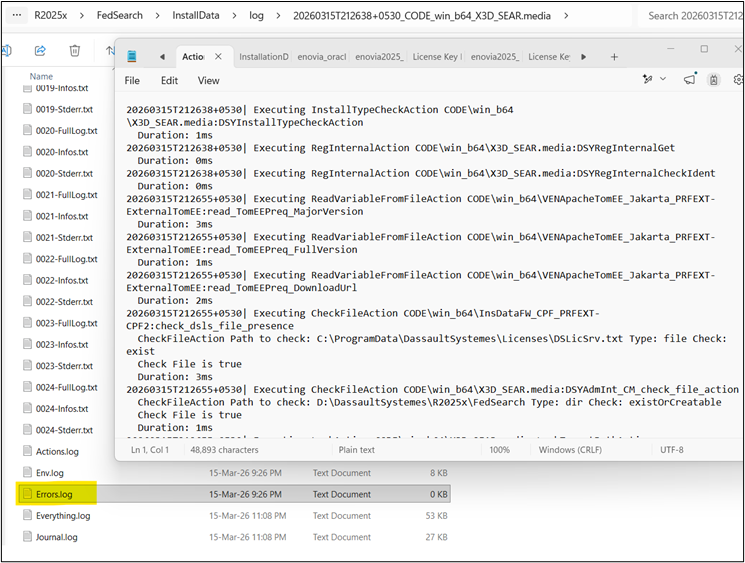
Look for errors like:
- Connection refused
- Index corruption
- Out of memory
Check Indexing Status
Sometimes search is up but indexing is broken.
Symptoms:
- Old data visible
- New data not searchable
Fix:
- Rebuild index from admin tools
- Restart indexing service
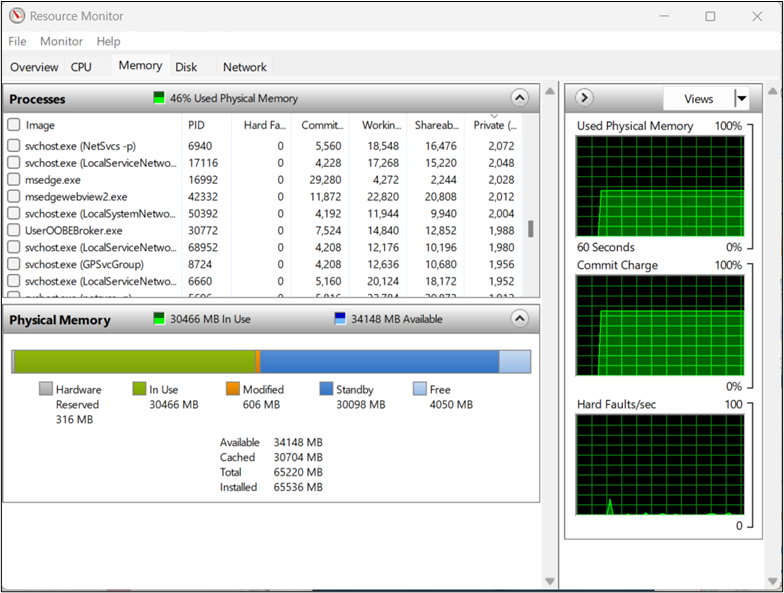
Disk Space & Memory Check
Search services require high resources.
Check: df -h, free -m
If disk is full or RAM is low:
- Clean temp files
- Increase memory
Check Port Availability
Search service runs on specific ports.
Verify ports are not blocked:
netstat -tulnp | grep <port>
If blocked:
- Open firewall ports
- Resolve conflicts
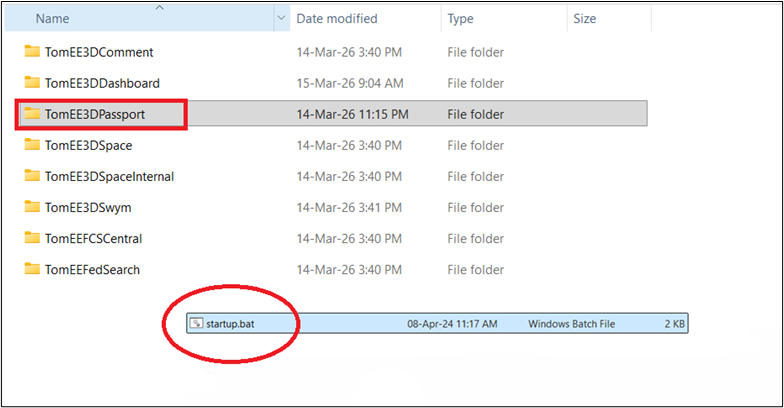
Restart in Correct Order
Recommended restart sequence:
Stop all services
Start:
- Database
- 3DPassport
- 3DSearch
- 3DSpace
Wrong order can cause service dependency failure.
Verify FedSearch Configuration
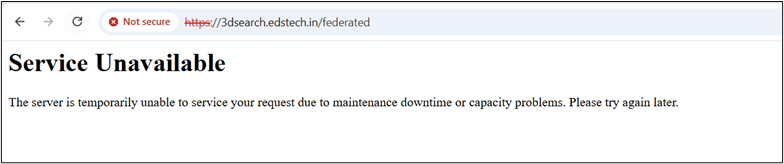
If Federated Search not working:
Check:
- External connectors
- Network access
- Configuration in admin panel
Common Issues & Fixes
Issue: Search returns blank results
- Cause: Index corruption
- Fix: Rebuild index
Issue: Search service not starting
- Cause: Port conflict / Java issue
- Fix: Change port or check Java config
Issue: Slow search performance
- Cause: Low memory
- Fix: Increase JVM heap size
Issue: FedSearch not working
- Cause: Connector misconfiguration
- Fix: Reconfigure external search
Pro Tips (From Real Support Experience)
- Always check logs first (saves time)
- Maintain regular index rebuild schedule
- Monitor server health (CPU, RAM, Disk)
- Use dedicated server for search in large environments
Conclusion
Search-related issues in the 3DEXPERIENCE Platform are commonly caused by factors such as service downtime, indexing problems, or underlying resource limitations. By systematically addressing these areas, organizations can efficiently identify the root cause of the issue, restore search functionality, and enhance overall platform performance and user experience.

Recent Posts
-
From Prototypes to Production: How Additive Manufacturing is Shaping Atmanirbhar Bharat
The conversation around additive manufacturing (AM) in India has evolved considerably over the past decade. What was once viewed primarily as a prototyping technology is…
-
Identify Stray Light in Imaging Systems with LightTools
Stray light is undesired light radiation that interacts with the components of a system and degrades its performance by generating noise, that significantly reduces image…
-
Redefining the Riding Experience with RAMSIS
In two‑wheeler design, comfort and safety start with the rider. RAMSIS (Realistic Anthropometric Mathematical System of Interior Comfort Simulation) is an ergonomic simulation platform that…
-

Enhancing Product Understanding through 3D Technical Illustrator
The 3D Technical Illustrator role within the 3DEXPERIENCE Platform enables organizations to transform complex engineering data into clear, interactive, and visually rich technical documentation. In…
-

Transforming Physical Parts into Digital Models with CATIA 3DEXPERIENCE Reverse Engineer role
Reverse engineering has become a critical capability in modern product development, especially when working with legacy components, competitor benchmarking, or physical prototypes that lack digital…
-
Common Installation Errors and How to Fix Them in 3DEXPERIENCE
The 3DEXPERIENCE Platform is a powerful solution used by industries worldwide for product lifecycle management (PLM), simulation, and collaboration. However, installing 3DEXPERIENCE—especially on-premise—can be complex…
-

From Classroom to Industry: Empowering Future Engineers with the 3DEXPERIENCE Platform
In today’s fast-evolving engineering and design landscape, educational institutions must go beyond conventional CAD teaching methods. While standalone tools like CATIA V5, SOLIDWORKS, or traditional…
-
CATIA Composer – Transforming Engineering Data into Interactive Technical Documentation
CATIA Composer is a powerful desktop application from Dassault Systemes designed to transform engineering 3D CAD data into highly intuitive and interactive technical documentation. In…
- Akshay Hedaoo
- April 30, 2026
Fixing Search Service Down Issue in 3DEXPERIENCE Platform
Search is one of the most critical features in the 3DEXPERIENCE platform. If the search service goes down, users cannot find objects, documents, or data—impacting productivity immediately.
In this blog, we’ll cover how to troubleshoot and fix search service issues related to:
- 3DSearch
- Federated Search (FedSearch)
- Indexing services
Common Symptoms
You may be facing a search service issue if:
- Search returns no results
- Search is very slow
- Error like “Search Service Not Available”
- Infinite loading while searching
- FedSearch not showing external results
Understanding How Search Works
In 3DEXPERIENCE:
- 3DSearch handles indexing and search queries
- Data is stored in search indexes (similar to Elasticsearch concept)
- Platform services communicate with search engine
If any of these components fail → search stops working.
Step-by-Step Troubleshooting Guide
Check Search Service Status
Login to server and verify services:
- Check if 3DSearch service in services is running
- On Linux: ps -ef | grep search
- On Windows: Check in Services.msc
If service is stopped → start it.
Verify Platform Services
Ensure below services are up:
- 3DSearch
- 3DSpace
- 3DPassport
If any service is down → restart all services in proper sequence.
Check Logs (Most Important )
Go to log directory: <Install_Dir>/logs/
Check:
- Search logs
- TomEE logs
- Platform logs
Look for errors like:
- Connection refused
- Index corruption
- Out of memory
Check Indexing Status
Sometimes search is up but indexing is broken.
Symptoms:
- Old data visible
- New data not searchable
Fix:
- Rebuild index from admin tools
- Restart indexing service
Disk Space & Memory Check
Search services require high resources.
Check: df -h, free -m
If disk is full or RAM is low:
- Clean temp files
- Increase memory
Check Port Availability
Search service runs on specific ports.
Verify ports are not blocked:
netstat -tulnp | grep <port>
If blocked:
- Open firewall ports
- Resolve conflicts
Restart in Correct Order
Recommended restart sequence:
Stop all services
Start:
- Database
- 3DPassport
- 3DSearch
- 3DSpace
Wrong order can cause service dependency failure.
Verify FedSearch Configuration
If Federated Search not working:
Check:
- External connectors
- Network access
- Configuration in admin panel
Common Issues & Fixes
Issue: Search returns blank results
- Cause: Index corruption
- Fix: Rebuild index
Issue: Search service not starting
- Cause: Port conflict / Java issue
- Fix: Change port or check Java config
Issue: Slow search performance
- Cause: Low memory
- Fix: Increase JVM heap size
Issue: FedSearch not working
- Cause: Connector misconfiguration
- Fix: Reconfigure external search
Pro Tips (From Real Support Experience)
- Always check logs first (saves time)
- Maintain regular index rebuild schedule
- Monitor server health (CPU, RAM, Disk)
- Use dedicated server for search in large environments
Conclusion
Search-related issues in the 3DEXPERIENCE Platform are commonly caused by factors such as service downtime, indexing problems, or underlying resource limitations. By systematically addressing these areas, organizations can efficiently identify the root cause of the issue, restore search functionality, and enhance overall platform performance and user experience.