Boosting Performance in Large Assembly Patterns & Drafting Views with 3DEXPERIENCE CATIA

- Lalit Gore
- August 19, 2025
In today’s competitive engineering world, time is money. Designers and engineers working with large assemblies – whether in aerospace, automotive or industrial machinery – often face performance bottlenecks when generating repetitive patterns or creating 2D drafting views.
Dassault Systèmes’ 3DEXPERIENCE platform offers advanced CAD capabilities, but applying the right best practices can make the difference between a slow, resource-heavy process and a smooth, efficient workflow.
This blog explores key methods to enhance Assembly Pattern performance and Drafting View generation – with practical insights on when and why to use them.
Assembly Pattern Generation: How to Work Smarter with Repetitive Designs
Assembly patterns are widely used to duplicate standard components (bolts, rivets, seats, fasteners, or modular parts) across large products. However, handling thousands of instances can easily slow down the design system.
3DEXPERIENCE offers two methods for pattern creation:
- Using “Keep Link with Specification” Option
- How it works: Creates a live connection between the main part and all its patterned instances.
- Benefit: If you modify the master part (e.g., bolt size), all instances update automatically.
- Limitation: For very large assemblies (e.g., 1000+ parts), performance drops significantly.
- Case Study Result:
- Creation: ~35s
- Update: ~17s
- Save: ~120s
- Modification (reduce from 1000 → 900): ~84s
- Total Time: 256 seconds
- Without “Keep Link with Specification” Option
- How it works: Instances are independent; modifying the pattern requires recreating instances.
- Benefit: Faster performance in large assemblies where updates are rare.
- Case Study Result:
- Recreate pattern: ~12s
- Update + Save: ~89s
- Modification: ~108s
- Total Time: 209 seconds (18% faster)
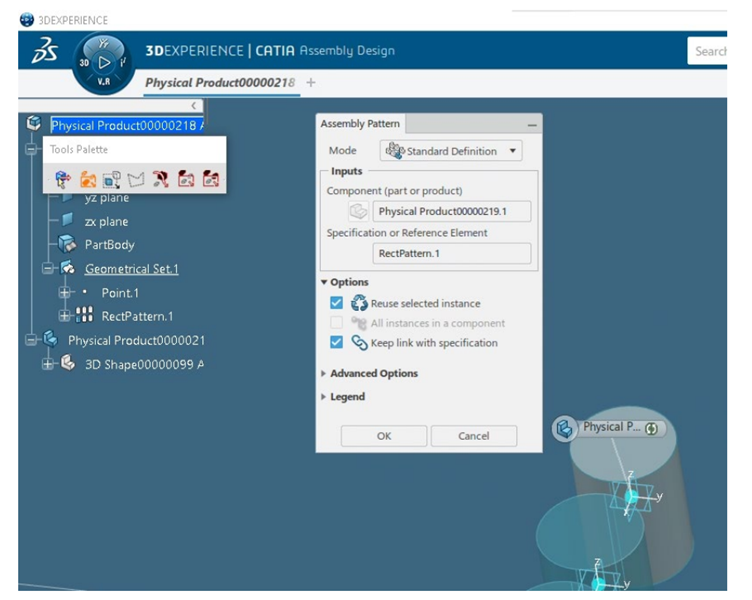
Best Practice Recommendation:
- Use Keep Link ON → for assemblies that require frequent synchronized updates (like bolt patterns that may change size frequently).
- Use Keep Link OFF → for very large assemblies where stability and speed are more important than live updates.
Drafting View Generation: Reducing the Wait Time
Once assemblies are complete, engineers must generate 2D drawings for manufacturing, inspection, or documentation. With thousands of parts, drafting view generation can be a time-consuming step – unless optimized.
- Turn Off Shaded Background Mode
- Effect: Removes unnecessary rendering of shaded views.
- Impact: 67% faster (75s → 27s).
- Use Case: Recommended when working with technical manufacturing drawings where hidden line views are sufficient.
- Deactivate Clash Detection
- Effect: Clash detection checks for interference between parts during view creation.
- Impact: 36% faster drafting performance.
- Use Case: Keep it OFF unless the drawing specifically requires clash validation.
- Disable Automatic Updates
- Effect: Creates lightweight previews first; full updates can be triggered manually or in batch mode.
- Impact: ~33% time saving.
- Use Case: Ideal for large assemblies where multiple views must be created quickly, and final updates can be done later.
- Other Smart Settings
- Occlusion Culling: Ignores parts that are not visible in the view.
- Part Size Filter: Skips very small parts (like washers or pins) that don’t add value in drafting views.
- Deactivate Exact Preview: Uses visualization instead of heavy geometry, improving speed.
These settings are powerful for industries like aerospace and automotive, where drawings often run into dozens of sheets and hundreds of views.
Practical Applications in Industry
- Automotive BIW (Body-in-White):
- Thousands of weld spots and fasteners patterned across the structure.
- Using Keep Link OFF reduces lag while working on massive assemblies.
- Aerospace (Aircraft Fuselage):
- Repeated seat patterns and rivets along the fuselage.
- Drafting optimizations cut drawing generation time for certification documents.
- Heavy Machinery & Plant Engineering:
- Assemblies with repetitive bolts, brackets, and structural members.
- Smart drafting settings reduce time-to-documentation for field manuals.
Conclusion
Efficiency in CAD isn’t just about tools – it’s about using them wisely. Dassault Systèmes’ 3DEXPERIENCE platform gives engineers powerful options to handle massive assemblies, but performance depends on configuration choices:
- For Assembly Patterns → Use Keep Link OFF for better speed in large assemblies and Keep Link ON only when synchronized updates are essential.
- For Drafting Views → Switch OFF heavy options like Shaded Background, Clash Detection, and Auto Update to save up to 60–70% of time.
By applying these practices, companies can significantly reduce design-to-documentation cycles, enabling faster innovation, quicker manufacturing preparation, and more efficient collaboration across teams.

Recent Posts
-
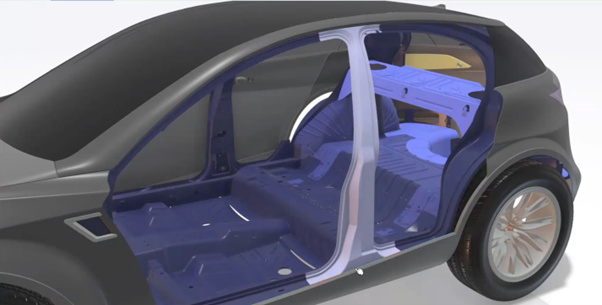
3DEXPERIENCE CATIA Composite Design – Delivering Next-Generation Precision for Advanced Composite Structures
3DEXPERIENCE CATIA Composite Design is an advanced, collaborative, and highly integrated engineering solution designed to manage the complexity of modern composite structures used across aerospace,…
-

Innovating with Light: Advanced Optical Solutions for Automotive, Medical, and Photonic Systems
The rapidly evolving optical industry demands cutting-edge systems with exceptional precision and accuracy. As the market for these advanced solutions grows, engineers and manufacturers must…
-
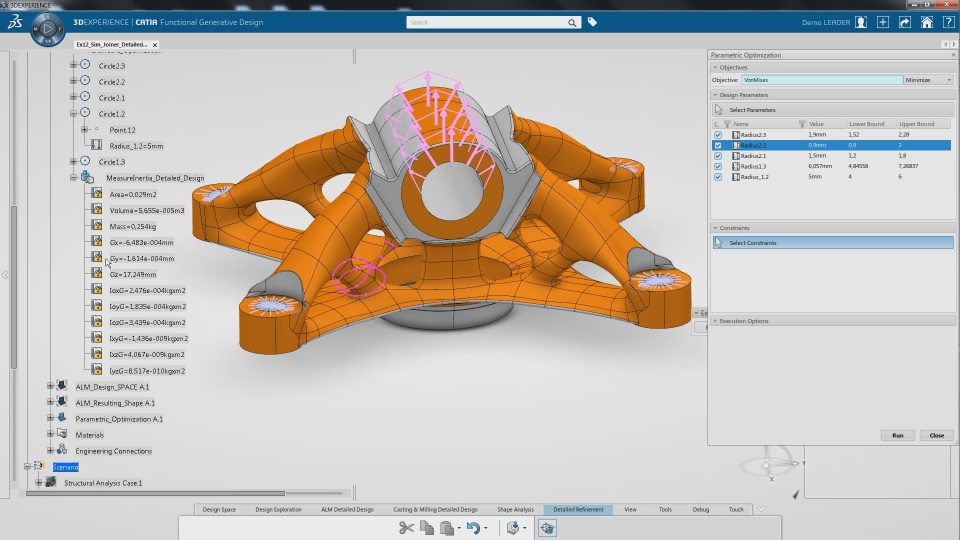
Parametric Modeling to Improve Design Efficiency in 3DEXPERIENCE CATIA
Parametric modeling is more than applying dimensions and constraints – it is about capturing design intent so that changes can be made without rework. In 3DEXPERIENCE CATIA, well-planned parametric models reduce redesign time, improve collaboration,…
-

Configuring Collaborative Spaces in 3DEXPERIENCE for Large Teams
In large organizations, effective collaboration is critical. 3DEXPERIENCE provides Collaborative Spaces, enabling teams to work concurrently on designs, manage data securely, and maintain version control.…
-
3DEXPERIENCE Web Apps – A Complete Guide to Classic Web Applications
The 3DEXPERIENCE Web Apps – Classic User’s Guide explains the common tools, user interface, and functionalities provided by Collaboration and Approvals, which are used across…
-
3DEXPERIENCE in the Automotive Industry: Use Cases & Benefits for OEMs, Tier-1 Suppliers, and EV Manufacturers
The automotive industry is evolving at an unprecedented pace. OEMs are under pressure to reduce time to market, Tier-1 suppliers must align closely with multiple…
-
Understanding Dashboards in the 3DEXPERIENCE Platform
In today’s digital engineering environment, information is valuable only when it is clearly visible, well connected, and easy to understand. The 3DEXPERIENCE Platform addresses this…
-

3DEXPERIENCE Native Apps: A Unified, Intelligent Design Environment
The 3DEXPERIENCE Native Apps form the core working environment for designers, engineers, and collaborators who require powerful authoring, visualization, and data management capabilities directly on…
- Lalit Gore
- August 19, 2025
Boosting Performance in Large Assembly Patterns & Drafting Views with 3DEXPERIENCE CATIA
In today’s competitive engineering world, time is money. Designers and engineers working with large assemblies – whether in aerospace, automotive or industrial machinery – often face performance bottlenecks when generating repetitive patterns or creating 2D drafting views.
Dassault Systèmes’ 3DEXPERIENCE platform offers advanced CAD capabilities, but applying the right best practices can make the difference between a slow, resource-heavy process and a smooth, efficient workflow.
This blog explores key methods to enhance Assembly Pattern performance and Drafting View generation – with practical insights on when and why to use them.
Assembly Pattern Generation: How to Work Smarter with Repetitive Designs
Assembly patterns are widely used to duplicate standard components (bolts, rivets, seats, fasteners, or modular parts) across large products. However, handling thousands of instances can easily slow down the design system.
3DEXPERIENCE offers two methods for pattern creation:
- Using “Keep Link with Specification” Option
- How it works: Creates a live connection between the main part and all its patterned instances.
- Benefit: If you modify the master part (e.g., bolt size), all instances update automatically.
- Limitation: For very large assemblies (e.g., 1000+ parts), performance drops significantly.
- Case Study Result:
- Creation: ~35s
- Update: ~17s
- Save: ~120s
- Modification (reduce from 1000 → 900): ~84s
- Total Time: 256 seconds
- Without “Keep Link with Specification” Option
- How it works: Instances are independent; modifying the pattern requires recreating instances.
- Benefit: Faster performance in large assemblies where updates are rare.
- Case Study Result:
- Recreate pattern: ~12s
- Update + Save: ~89s
- Modification: ~108s
- Total Time: 209 seconds (18% faster)
Best Practice Recommendation:
- Use Keep Link ON → for assemblies that require frequent synchronized updates (like bolt patterns that may change size frequently).
- Use Keep Link OFF → for very large assemblies where stability and speed are more important than live updates.
Drafting View Generation: Reducing the Wait Time
Once assemblies are complete, engineers must generate 2D drawings for manufacturing, inspection, or documentation. With thousands of parts, drafting view generation can be a time-consuming step – unless optimized.
- Turn Off Shaded Background Mode
- Effect: Removes unnecessary rendering of shaded views.
- Impact: 67% faster (75s → 27s).
- Use Case: Recommended when working with technical manufacturing drawings where hidden line views are sufficient.
- Deactivate Clash Detection
- Effect: Clash detection checks for interference between parts during view creation.
- Impact: 36% faster drafting performance.
- Use Case: Keep it OFF unless the drawing specifically requires clash validation.
- Disable Automatic Updates
- Effect: Creates lightweight previews first; full updates can be triggered manually or in batch mode.
- Impact: ~33% time saving.
- Use Case: Ideal for large assemblies where multiple views must be created quickly, and final updates can be done later.
- Other Smart Settings
- Occlusion Culling: Ignores parts that are not visible in the view.
- Part Size Filter: Skips very small parts (like washers or pins) that don’t add value in drafting views.
- Deactivate Exact Preview: Uses visualization instead of heavy geometry, improving speed.
These settings are powerful for industries like aerospace and automotive, where drawings often run into dozens of sheets and hundreds of views.
Practical Applications in Industry
- Automotive BIW (Body-in-White):
- Thousands of weld spots and fasteners patterned across the structure.
- Using Keep Link OFF reduces lag while working on massive assemblies.
- Aerospace (Aircraft Fuselage):
- Repeated seat patterns and rivets along the fuselage.
- Drafting optimizations cut drawing generation time for certification documents.
- Heavy Machinery & Plant Engineering:
- Assemblies with repetitive bolts, brackets, and structural members.
- Smart drafting settings reduce time-to-documentation for field manuals.
Conclusion
Efficiency in CAD isn’t just about tools – it’s about using them wisely. Dassault Systèmes’ 3DEXPERIENCE platform gives engineers powerful options to handle massive assemblies, but performance depends on configuration choices:
- For Assembly Patterns → Use Keep Link OFF for better speed in large assemblies and Keep Link ON only when synchronized updates are essential.
- For Drafting Views → Switch OFF heavy options like Shaded Background, Clash Detection, and Auto Update to save up to 60–70% of time.
By applying these practices, companies can significantly reduce design-to-documentation cycles, enabling faster innovation, quicker manufacturing preparation, and more efficient collaboration across teams.