3DEXPERIENCE Web Apps – A Complete Guide to Classic Web Applications
- Lalit Gore
- December 26, 2025
The 3DEXPERIENCE Web Apps – Classic User’s Guide explains the common tools, user interface, and functionalities provided by Collaboration and Approvals, which are used across all classic web apps on the 3DEXPERIENCE platform. These classic web apps support both baseline system behavior and customer-specific environments, making them flexible for enterprise needs.
Unlike dashboard-embedded apps, a web app opens in a separate browser tab, offering a focused and dedicated workspace for managing business data.
What Are 3DEXPERIENCE Web Apps?
A 3DEXPERIENCE Web App is a browser-based application that opens in its own tab instead of inside a dashboard widget. These apps are designed to help users manage documents, projects, issues, tasks, changes, and approvals efficiently within the ENOVIA environment.
Default Home Page – The Dashboard
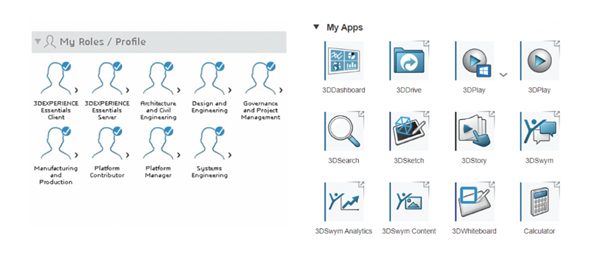
When you log in or click Home, the system opens the Dashboard, which acts as the default landing page for classic web apps.
Key Highlights of the Dashboard
- Quick access to documents, collections, projects, issues, and tasks
- Visual charts to analyze workload and pending actions
- Shortcuts and collections for faster navigation
- Alerts for casual license users when monthly usage limits are near
- Real-time overview of recent document changes and responsibilities
Users can refine displayed information using filters and interactive charts to focus on what needs immediate attention.
Accessing the Dashboard
You can access the dashboard using any of the following methods:
- Click Home
- Click > Home from the top bar
- Navigate via Collaboration and Approvals → Dashboard
To change the default home page, users can configure settings through Web App Preferences.
Common Tools Available in All Classic Web Apps
Advanced Table Management
Users can:
- Customize column order, width, and sorting
- Group rows and filter information
- View data as tables or graphs
- Edit information in a spreadsheet-like interface
- Generate comparison reports between two business objects
Lifecycle Management
Web apps allow users to:
- Create, review, release, and obsolete objects
- Manage approvals, tasks, and signatures
- Promote or demote individual or multiple objects
- Run validation and lifecycle reports
Background Job Monitoring
Track the progress of long-running background jobs without interrupting work.
Output and Export Options
Users can:
- Print pages
- Generate PDFs
- Export data in CSV, HTML, or Text formats
Sharing and Collaboration
- Share business objects with other users
- Transfer ownership of content securely
- Subscribe to object events and notifications
Dashboard Tabs Overview
New Docs
- Latest 100 documents created by you in the last 10 days
- Displays only Document objects
Changed Docs
- Latest 100 documents modified by you in the last 10 days
My Recent Docs
- Documents created or modified and owned by you
My Trainings
- Visible only if Quality-based Document Control is installed
- Lists documents assigned for training
Collections
- Group related objects such as parts, documents, or project data
Projects
- Available if Project Management is installed
- Displays projects you have access to
Change Management Menu
The Change menu supports structured engineering change processes:
- Add objects to an existing or new Change Request
- Add objects to an existing or new Change Order
- Add objects to an existing or new Change Action
This ensures traceability and controlled product evolution.
Columns and Actions in Document Pages
Each list page displays columns depending on the object type, such as:
- Name, Title, Description
- Revision and Version
- State and Lifecycle status
- Originator and creation date
- Locked files and deliverables
Common Actions Include:
- Download
- Check-in / Check-out
- Lock / Unlock
- Upload new files
- Subscribe to document events
- Open properties in a new window
Charts and Visual Analytics
Charts appear on the right side of the dashboard and provide insights into in-process work.
Common Dashboard Charts
- Assigned Items
- Locked Documents
- Project Tasks
- Issues and Changes
- Due Tasks Timeline
- Updates of Documents Over Time
Interactive charts allow users to click data points to filter the list automatically.
Collections – Organizing Your Work
Collections allow users to save frequently accessed objects in one place.
Key capabilities include:
- Clipboard collection for temporary storage
- User-defined collections
- Adding items directly from list pages
- Searching within collections (on-premises configuration)
Sharing and Ownership Transfer
ENOVIA web apps support:
- Sharing objects with specific users
- Controlling access permissions
- Transferring ownership of content securely
Lifecycles and Approvals
Lifecycles define who can do what and when during an object’s existence.
Supported features:
- Approval workflows
- Task assignments
- Digital signatures
- Promote and demote operations
- Validation reports
Generating Output
Users can:
- Render pages as PDF
- Export tables and structured data
- Maintain formatting during exports
Web App Preferences
Preferences allow users to personalize the web app experience.
Key Preference Categories
- Currency and unit conversion
- Export file formats
- Pagination controls
- Time zone settings
- Email notification frequency
- Display of images in tables
- Discussion view and sorting options
- Browser toolbar visibility
Preferences can be accessed via Top Bar → Preferences and applied globally or per app.
Conclusion
The 3DEXPERIENCE Classic Web Apps provide a powerful, flexible, and intuitive environment for managing product data, documents, tasks, and engineering changes. With rich dashboards, advanced filtering, lifecycle control, and collaboration tools, these apps help organizations improve visibility, productivity, and control across the product lifecycle.
Whether you are managing documents, tracking engineering changes, or collaborating across teams, 3DEXPERIENCE Web Apps deliver a robust digital backbone for modern engineering enterprises.

Recent Posts
-
3DEXPERIENCE CATIA Composite Design – Delivering Next-Generation Precision for Advanced Composite Structures
3DEXPERIENCE CATIA Composite Design is an advanced, collaborative, and highly integrated engineering solution designed to manage the complexity of modern composite structures used across aerospace,…
-

Innovating with Light: Advanced Optical Solutions for Automotive, Medical, and Photonic Systems
The rapidly evolving optical industry demands cutting-edge systems with exceptional precision and accuracy. As the market for these advanced solutions grows, engineers and manufacturers must…
-
Parametric Modeling to Improve Design Efficiency in 3DEXPERIENCE CATIA
Parametric modeling is more than applying dimensions and constraints – it is about capturing design intent so that changes can be made without rework. In 3DEXPERIENCE CATIA, well-planned parametric models reduce redesign time, improve collaboration,…
-

Configuring Collaborative Spaces in 3DEXPERIENCE for Large Teams
In large organizations, effective collaboration is critical. 3DEXPERIENCE provides Collaborative Spaces, enabling teams to work concurrently on designs, manage data securely, and maintain version control.…
-

3DEXPERIENCE in the Automotive Industry: Use Cases & Benefits for OEMs, Tier-1 Suppliers, and EV Manufacturers
The automotive industry is evolving at an unprecedented pace. OEMs are under pressure to reduce time to market, Tier-1 suppliers must align closely with multiple…
-
Understanding Dashboards in the 3DEXPERIENCE Platform
In today’s digital engineering environment, information is valuable only when it is clearly visible, well connected, and easy to understand. The 3DEXPERIENCE Platform addresses this…
-

3DEXPERIENCE Native Apps: A Unified, Intelligent Design Environment
The 3DEXPERIENCE Native Apps form the core working environment for designers, engineers, and collaborators who require powerful authoring, visualization, and data management capabilities directly on…
-

PLM Components in 3DEXPERIENCE: Enabling Digital Continuity Across the Product Lifecycle
Product Lifecycle Management (PLM) Components form the digital foundation of the 3DEXPERIENCE Platform. They define how product data is created, structured, related, governed, and reused across the…
- Lalit Gore
- December 26, 2025
3DEXPERIENCE Web Apps – A Complete Guide to Classic Web Applications
The 3DEXPERIENCE Web Apps – Classic User’s Guide explains the common tools, user interface, and functionalities provided by Collaboration and Approvals, which are used across all classic web apps on the 3DEXPERIENCE platform. These classic web apps support both baseline system behavior and customer-specific environments, making them flexible for enterprise needs.
Unlike dashboard-embedded apps, a web app opens in a separate browser tab, offering a focused and dedicated workspace for managing business data.
What Are 3DEXPERIENCE Web Apps?
A 3DEXPERIENCE Web App is a browser-based application that opens in its own tab instead of inside a dashboard widget. These apps are designed to help users manage documents, projects, issues, tasks, changes, and approvals efficiently within the ENOVIA environment.
Default Home Page – The Dashboard
When you log in or click Home, the system opens the Dashboard, which acts as the default landing page for classic web apps.
Key Highlights of the Dashboard
- Quick access to documents, collections, projects, issues, and tasks
- Visual charts to analyze workload and pending actions
- Shortcuts and collections for faster navigation
- Alerts for casual license users when monthly usage limits are near
- Real-time overview of recent document changes and responsibilities
Users can refine displayed information using filters and interactive charts to focus on what needs immediate attention.
Accessing the Dashboard
You can access the dashboard using any of the following methods:
- Click Home
- Click > Home from the top bar
- Navigate via Collaboration and Approvals → Dashboard
To change the default home page, users can configure settings through Web App Preferences.
Common Tools Available in All Classic Web Apps
Advanced Table Management
Users can:
- Customize column order, width, and sorting
- Group rows and filter information
- View data as tables or graphs
- Edit information in a spreadsheet-like interface
- Generate comparison reports between two business objects
Lifecycle Management
Web apps allow users to:
- Create, review, release, and obsolete objects
- Manage approvals, tasks, and signatures
- Promote or demote individual or multiple objects
- Run validation and lifecycle reports
Background Job Monitoring
Track the progress of long-running background jobs without interrupting work.
Output and Export Options
Users can:
- Print pages
- Generate PDFs
- Export data in CSV, HTML, or Text formats
Sharing and Collaboration
- Share business objects with other users
- Transfer ownership of content securely
- Subscribe to object events and notifications
Dashboard Tabs Overview
New Docs
- Latest 100 documents created by you in the last 10 days
- Displays only Document objects
Changed Docs
- Latest 100 documents modified by you in the last 10 days
My Recent Docs
- Documents created or modified and owned by you
My Trainings
- Visible only if Quality-based Document Control is installed
- Lists documents assigned for training
Collections
- Group related objects such as parts, documents, or project data
Projects
- Available if Project Management is installed
- Displays projects you have access to
Change Management Menu
The Change menu supports structured engineering change processes:
- Add objects to an existing or new Change Request
- Add objects to an existing or new Change Order
- Add objects to an existing or new Change Action
This ensures traceability and controlled product evolution.
Columns and Actions in Document Pages
Each list page displays columns depending on the object type, such as:
- Name, Title, Description
- Revision and Version
- State and Lifecycle status
- Originator and creation date
- Locked files and deliverables
Common Actions Include:
- Download
- Check-in / Check-out
- Lock / Unlock
- Upload new files
- Subscribe to document events
- Open properties in a new window
Charts and Visual Analytics
Charts appear on the right side of the dashboard and provide insights into in-process work.
Common Dashboard Charts
- Assigned Items
- Locked Documents
- Project Tasks
- Issues and Changes
- Due Tasks Timeline
- Updates of Documents Over Time
Interactive charts allow users to click data points to filter the list automatically.
Collections – Organizing Your Work
Collections allow users to save frequently accessed objects in one place.
Key capabilities include:
- Clipboard collection for temporary storage
- User-defined collections
- Adding items directly from list pages
- Searching within collections (on-premises configuration)
Sharing and Ownership Transfer
ENOVIA web apps support:
- Sharing objects with specific users
- Controlling access permissions
- Transferring ownership of content securely
Lifecycles and Approvals
Lifecycles define who can do what and when during an object’s existence.
Supported features:
- Approval workflows
- Task assignments
- Digital signatures
- Promote and demote operations
- Validation reports
Generating Output
Users can:
- Render pages as PDF
- Export tables and structured data
- Maintain formatting during exports
Web App Preferences
Preferences allow users to personalize the web app experience.
Key Preference Categories
- Currency and unit conversion
- Export file formats
- Pagination controls
- Time zone settings
- Email notification frequency
- Display of images in tables
- Discussion view and sorting options
- Browser toolbar visibility
Preferences can be accessed via Top Bar → Preferences and applied globally or per app.
Conclusion
The 3DEXPERIENCE Classic Web Apps provide a powerful, flexible, and intuitive environment for managing product data, documents, tasks, and engineering changes. With rich dashboards, advanced filtering, lifecycle control, and collaboration tools, these apps help organizations improve visibility, productivity, and control across the product lifecycle.
Whether you are managing documents, tracking engineering changes, or collaborating across teams, 3DEXPERIENCE Web Apps deliver a robust digital backbone for modern engineering enterprises.